Auto Build
Auto Build uses a supervisor to assign valid, unassigned tickets using your prompt. It sleeps between checks and resumes when more work can run.
Start Auto Build
Open Project Timeline and click Auto Build. Describe how the supervisor should choose work, then adjust the ignore filters below the prompt and click the primary Auto Build button.
For example: “Prioritize small independent tickets for the next release. Leave design decisions for me.”
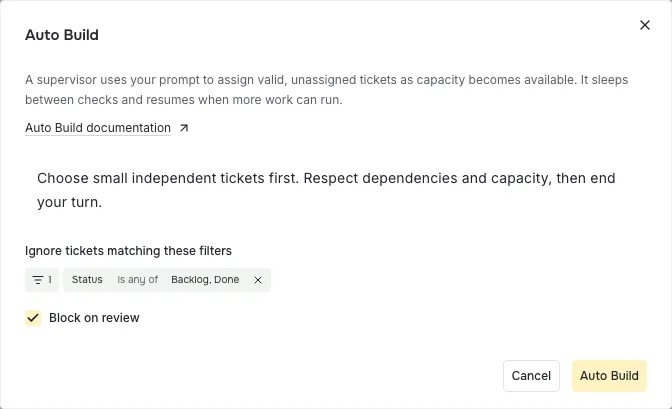
The ignore list uses the same filter button, picker, and bubbles as Tickets. Tickets matching the filter are excluded. Backlog and Done are ignored by default. Remove Backlog from the filter if you want those tickets to be considered. An empty ignore list excludes nothing.
The selected timeline view, search, and display filters only affect what you see. The supervisor considers valid tickets across the project, using its own ignore list.
Block on review is on by default. Turn it off to let dependent tickets start while their prerequisites are in review. Their workspaces start at the submitted dependency commit, and the implementing agent stacks its changes on top. Missing revisions, requested changes, ambiguous attempts, and incompatible dependency branches still prevent a launch.
How the supervisor works
Planner checks every three minutes and also checks when tickets change or a session finishes. When the board has changed or capacity has become available, and valid unassigned work exists, Planner starts or resumes the supervisor session with your prompt and Auto Build instructions.
The supervisor reads the current candidates and capacity, chooses relevant tickets using your prompt, and launches or resumes their managed attempts. It then ends its turn and sleeps. Planner reuses that session for later prompts and does not repeatedly prompt it for an unchanged board. Board changes during a running supervisor turn are checked after it finishes.
Each new implementation uses its own managed Git workspace and the default agent. Its ticket moves to In Progress in both Tickets and Project Timeline. The supervisor does not consume an implementation slot. Set Maximum in-progress tickets in Planner Settings to control how many implementation sessions can run together.
Tickets must have ready prerequisites and available dependency revisions. Drafts, archived tickets, blocked tickets, review gates, and open human-review requests are not candidates. A ticket already assigned to a running session is excluded. An unattended In Progress ticket without a current attempt can be considered. Completed implementations already in review stay in the normal attempt workflow.
Implementation follows the project’s Planner settings, including adversarial review and pull request creation. Auto Build does not approve or merge work.
Inspect or stop Auto Build
The header button always says Auto Build. Its dot is green while implementation capacity is in use, yellow while Auto Build is on with no capacity in use, and red if the supervisor fails. Click it to open a compact popover with a separate supervisor row and running ticket sessions, including their statuses. The supervisor says sleeping between turns while Auto Build is on. The header shows used capacity and its limit, such as Running ticket sessions (0/2). Click a session to inspect it.
Click the small Stop Auto Build button with the pause icon in the popover header to prevent future supervisor prompts and automatic dispatches. Running sessions continue. Stopping does not cancel their work or discard changes.
Auto Build keeps working when you close the timeline and resumes its checks after restarting Prompt Studio. Starting it again preserves your prompt, ignore filters, and review-blocking choice.
When work needs attention
If the supervisor cannot start or resume, Auto Build turns off and shows the error. Resolve the problem and start it again. Existing attempts remain available.
The popover shows a small banner when the supervisor fails or needs input, all running ticket sessions need input, or no work can run because of dependencies, blockers, or review requests. A finished board does not show a blocker banner.
If an implementation needs help, answer every open review request. The supervisor can then resume that attempt in the same workspace and session when capacity is available, with your answers included.
If nothing starts, check the ignore filters, prerequisites, default agent, and in-progress limit. The supervisor can also leave valid tickets unassigned when they do not match your prompt.
Agent commands
The supervisor uses public Planner commands:
pst pstdio-planner auto-build candidates
pst pstdio-planner auto-build dispatch --ticket PS-123 --revision <mode-revision>
The candidate command reports the current mode revision, valid tickets, and capacity. Dispatch rechecks the mode, ignore filters, assignments, prerequisites, and capacity before launching or resuming work. A prompt from an earlier mode cannot dispatch work after Auto Build is stopped or restarted.