Open a project
Open a folder to create a local project, or to return to one you already opened.
Open a folder in the dashboard
- Open the project menu from the arrow beside the project name at the top of the window. In the desktop app you can also choose View → Open Project….
- Choose Create project.
- In Open project folder, browse to the folder, or type its path. Choose New folder to create an empty one.
- Choose Open folder.
The folder does not need Git, and you do not need a coding agent installed yet. You can add both later.
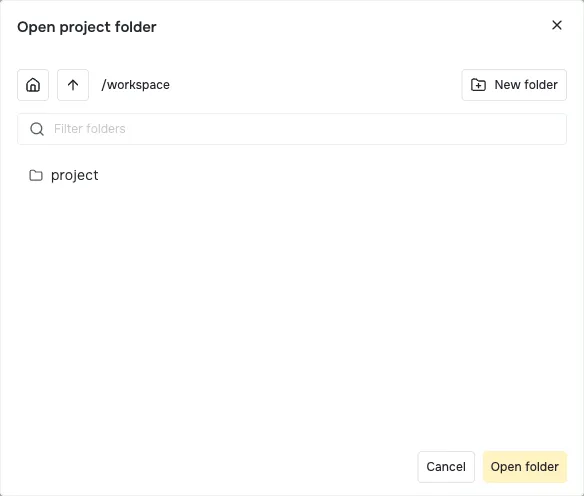
The picker shows folders on the machine running Prompt Studio. The path in this example is /workspace; choose the folder where you want your own tools and files to live.
Open a folder from the terminal
Run pst projects create inside the folder:
cd ~/my-tools
pst projects create
You can also pass a path and a name:
pst projects create "My tools" --path ~/my-toolsOther pst commands find the project from the folder you run them in. See CLI projects for every option.
What happens when you open a folder
- The folder name becomes the project name. You can rename the project in its settings.
- Prompt Studio writes
.pstdio/config.jsonin the folder. This file links the folder to its project. A.pstdio/.gitignorekeeps it out of Git. - The project gets its default workspace: the folder itself. Agent sessions work in this folder and share its files.
- The default extensions are installed and turned on. They connect the Claude Code, Codex, and OpenCode agents, and add themes and skills.
Opening the same folder again reopens its project. A subfolder is a separate project, even inside a Git repository. Deleting a project keeps your chosen folder and your own files, but removes the project’s matching .pstdio/config.json link and saved host data. Provider-created workspaces follow their provider’s cleanup rules.
To learn how projects, workspaces, and Git worktrees fit together, read Projects and workspaces.
Find your way around the workbench
The workbench is the shared window where you use your tools and talk to agents. Start here after opening a project:
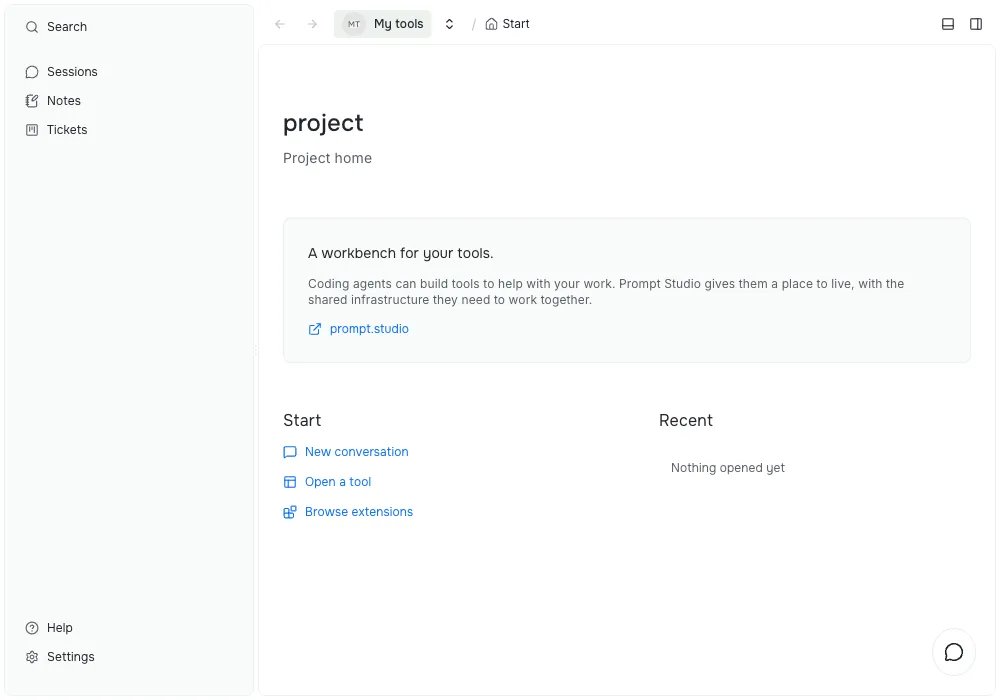
- The project name at the top takes you back to Start. Its arrow opens the project menu so you can switch projects.
- New conversation opens an agent conversation beside your current tool.
- Open a tool opens the command palette, where you can choose a tool or command. Enabled extensions can also add tools to the sidebar.
- Browse extensions opens the extension settings so you can add tools.
- Settings at the bottom of the sidebar holds runtime options, project options, and extension settings.
The example project has Notes and Planner enabled, so its sidebar includes Notes and Tickets. Those are extension tools. Your sidebar depends on the extensions you turn on.
Next, add tools.