Notifications
Notifications put work that still needs a person or an agent into the project’s Prompt Studio inbox. These commands list, create, and resolve them.
To show the inbox in the dashboard, turn on Settings → Experimental → Beta features → Notifications. It starts off. The CLI and notification producers work while the dashboard feature is off.
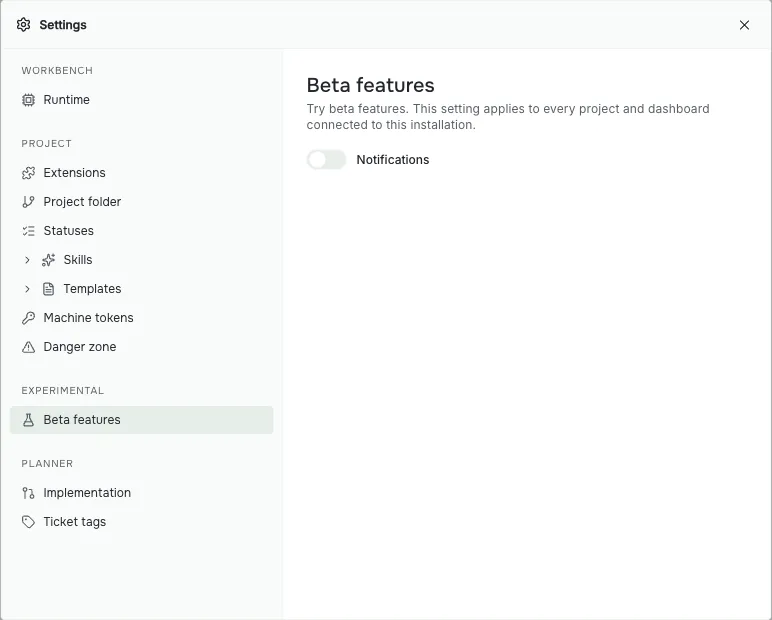
The switch is global: it changes the dashboard feature for every project. It controls whether the inbox is visible, rather than whether notifications can be created. Use the commands below to inspect them even before turning the dashboard feature on.
Commands
pst inbox [--project-id <id>] [--status <status>] [--priority <priority>] [--limit <count>]
pst notifications list [--project-id <id>] [--status <status>] [--priority <priority>] [--limit <count>]
pst notifications show <id> [--project-id <id>]
pst notifications send --project-id <id> --kind <kind> --title <title> [options]
pst notifications read <id> [--project-id <id>]
pst notifications done <id> [--project-id <id>]
pst notifications dismiss <id> [--project-id <id>]
pst notifications snooze <id> --until <time> [--project-id <id>]
pst inbox and pst notifications list show pending notifications. To filter by more than one status or priority, separate the values with commas.
send also accepts --body, --priority, --target <type:id>, and --dedupe-key. Sending again with the same live dedupe key updates the existing notification instead of creating a second one.
snooze --until accepts an ISO timestamp or a relative duration such as 1h.
Commands without --project-id use the project linked in .pstdio/config.json.
Run pst notifications <command> --help for current options.